
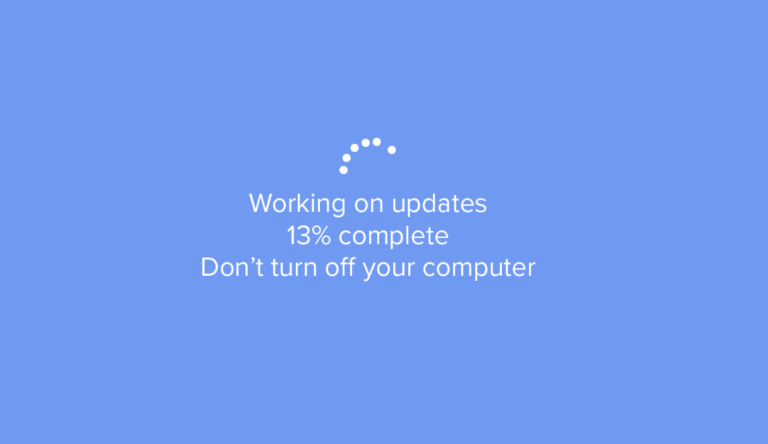
Is your Windows Update stuck at 0%, 99%, or simply refusing to download? This is a common issue often caused by corrupted temporary files. The most effective solution is to stop the system services, clear the cached files, and force Windows to download fresh copies.
Here is your step-by-step guide to fixing the update loop using the Command Prompt.
Why is Windows Update Stuck on Your PC?
Before fixing it, it helps to know why this happens. Usually, the SoftwareDistribution folder—where Windows stores temporary update files—becomes corrupted. By clearing this folder, you force the system to re-download the updates from scratch, eliminating the corruption.
Step-by-Step: Fix the Windows Update Stuck Loop
Follow these steps carefully to resolve the issue. You will need Administrator privileges.
1. Open Command Prompt as Administrator
Press the Windows Key and type
cmd.Right-click on Command Prompt and select Run as administrator.
Click Yes if prompted by User Account Control.
2. Stop Update Services
You cannot delete the cache files while the system is using them. Type the following commands one by one, pressing Enter after each:
net stop wuauserv
net stop cryptSvc
net stop bits
net stop msiserver
3. Rename the Cache Folders
Now that the services are stopped, you can “hide” the old corrupted folders. This is the critical step when you find Windows Update stuck on the same percentage for hours. Run these two commands:
ren C:\Windows\SoftwareDistribution SoftwareDistribution.old
ren C:\Windows\System32\catroot2 catroot2.old
4. Restart Services
Now, restart the services so Windows can resume normal operations. Enter these commands:
net start wuauserv
net start cryptSvc
net start bits
net start msiserver
5. Check for Updates Again
Close the Command Prompt and restart your computer. Once back in Windows:
- Go to Settings > Update & Security.
Click Check for updates.
Windows will now create a fresh SoftwareDistribution folder, and the download should proceed without errors.