
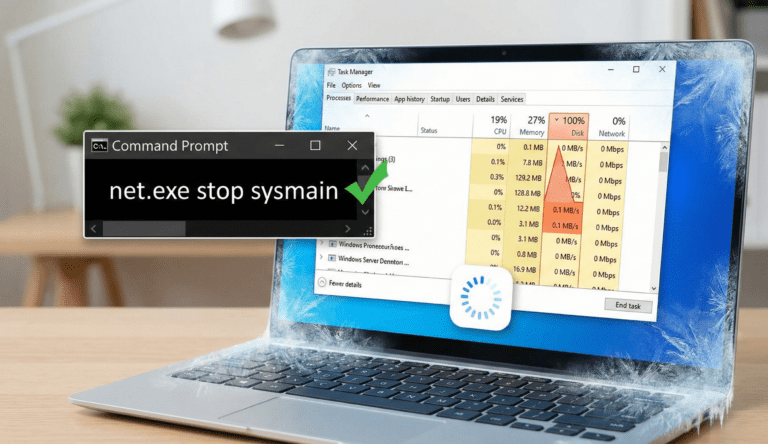
Is your computer running incredibly slow, even though you aren’t doing anything heavy? If you open the Task Manager and see 100% disk usage in the performance tab, your hard drive is being overworked. This common issue in Windows 10 and 11 causes the system to freeze, lag, and become unresponsive.
The problem usually isn’t a broken hard drive, but rather a software conflict or a Windows service running out of control. Here is how to fix it.
Why Does Task Manager Show 100% Disk Usage?
Before applying fixes, it is important to understand the cause. Often, a service called “SysMain” (formerly Superfetch) tries to preload apps into memory to make them faster. However, on older Hard Disk Drives (HDD), this process can backfire, causing the disk to read/write constantly and leading to the 100% disk usage error.
Other causes include corrupted virtual memory files or antivirus scans running in the background.
Method 1: Disable the SysMain Service
This is the most effective fix for most users. You can stop this service using the Command Prompt.
Press the Windows Key and type
cmd.Right-click Command Prompt and choose Run as administrator.
Type the following command and press Enter:
DOS:
net.exe stop sysmain
Check your Task Manager. If the usage drops, you have found the culprit. You can then disable it permanently in the “Services” app.
Method 2: Reset Virtual Memory
If the first method failed, your virtual memory (a file on your disk that acts like RAM) might be corrupted.
Go to Settings > System > About.
Click Advanced system settings.
Under the Advanced tab, click Settings (Performance section).
Go to the Advanced tab and click Change (Virtual Memory).
Uncheck “Automatically manage paging file size,” select “No paging file,” and restart your PC.
Note: Repeat the steps to turn it back on after the restart to create a fresh file.
Final Thoughts: Upgrade to an SSD
If you have tried everything and the disk is still maxed out, your hardware might simply be too old for modern Windows. Upgrading from a mechanical HDD to a Solid State Drive (SSD) is the ultimate solution that guarantees speed.