
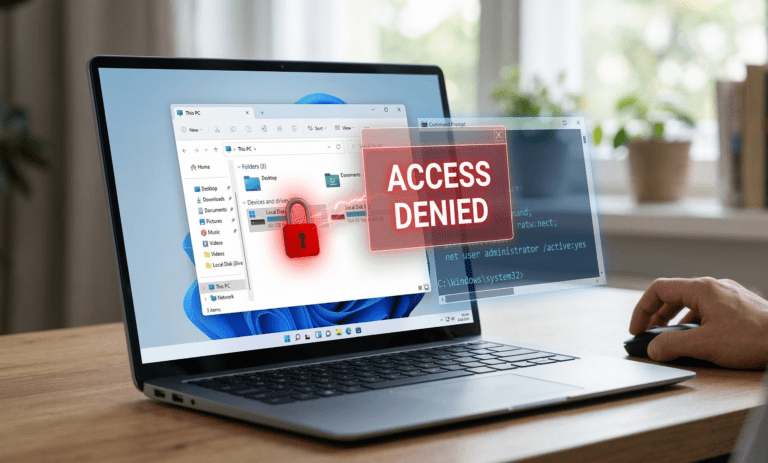
Have you turned on your PC only to find you cannot access C drive files or folders? This terrifying “Access Denied” error in Windows 11 often happens after a recent update or a sudden permission change, locking you out of your own hard drive. It is a critical problem, but your data is usually safe. Here is how to regain control of your system immediately.
Why You Lose Access C Drive Permissions
Usually, a buggy Windows update resets the security descriptors on your root drive. This means your local user account is suddenly no longer recognized as the administrator, preventing you from opening the drive. Another common cause is a third-party antivirus aggressively locking down system files to prevent ransomware.
Method 1: Take Ownership via Security Settings
You can manually force Windows to recognize you as the owner of the drive. This solves the issue for most users.
Open File Explorer, right-click your Local Disk (C:), and select Properties.
Go to the Security tab and click the Advanced button.
At the top, next to “Owner,” click Change.
Type your username (or your Microsoft account email), click Check Names, and press OK.
Check the box that says “Replace owner on subcontainers and objects.”
Click Apply and wait for the process to finish (this might take a few minutes).
Method 2: Use the Hidden Administrator Account
If the first method fails, you can use the built-in super admin account to bypass the lock.
Click the Start button, type
cmd.Right-click Command Prompt and select Run as administrator.
Type the following command and press Enter:
net user administrator /active:yesLog out of your current account and log into the new Administrator account.
You should now be able to open the drive and transfer your files or fix permissions.
Conclusion
By following these steps, you should successfully access C drive folders again. Remember to disable the hidden administrator account when you are done by typing /active:no in the command prompt for security reasons.
🚀 Still Locked Out? If your drive is completely inaccessible, you might have a failing hard drive. Contact our IT team for professional data recovery services before losing your files permanently.